Examining the IconCache database

Earlier this year I came across a forensic artefact that I didn’t know a whole lot about, and there wasn’t a lot of research on either. I was working on a ransomware case where we picked up a standard KAPE triage collection. As part of that, I ran a keyword search in Xways over the entire package for the names of our malicious executables and some hits caught my eye. Inside the users localappdata was a file called IconCache.db that I had seen in passing but never really looked at before. I had just bought a copy of 010 Editor so down the rabbit hole we go!

Special thanks to my former coworkers Cassie and Yogesh for their assistance in picking this apart.

What is IconCache

The IconCache contains the images associated with an items icon so that Windows can recall it without rebuilding it. Think of it like ThumbCache but for Icons, in fact some of the databases are even in the same spot.

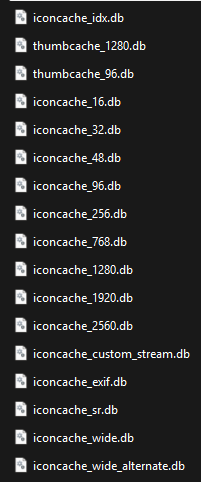
IconCache is made up of a few different files:

%localappdata%/IconCache.db
%localappdata%/Microsoft/Windows/Explorer/iconcache_*.db
Parsing the data
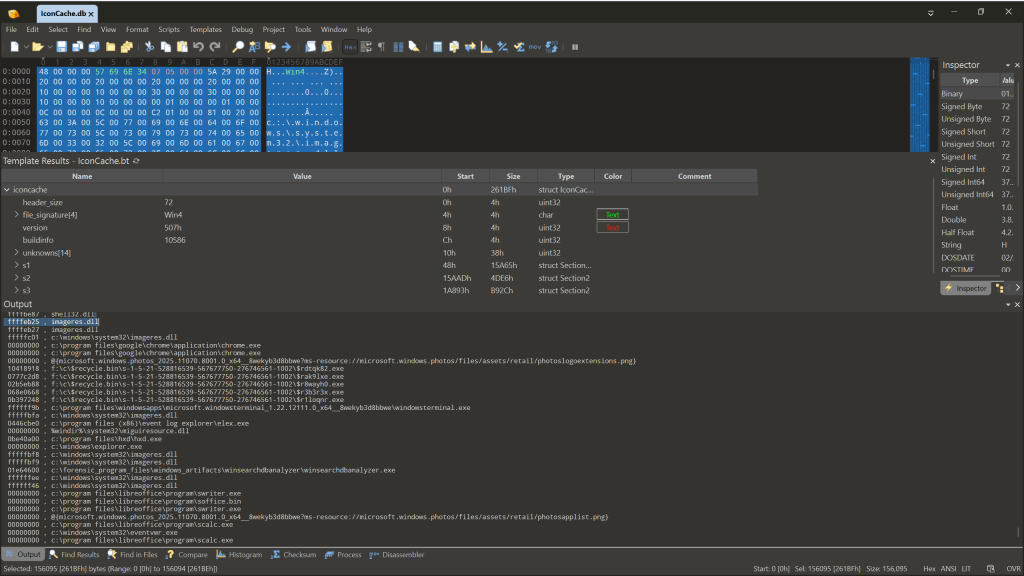
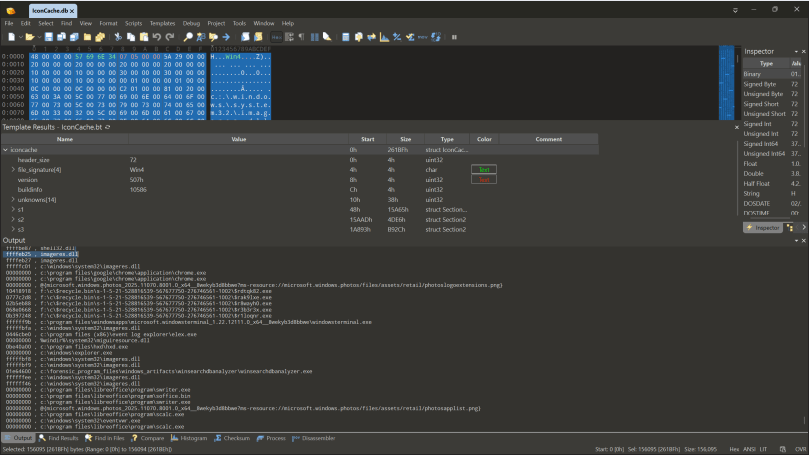
If you have 010 editor and want to parse the data from your IconCache.db file then you can grab the template from here. We were able to take the format documentation from this research paper (who did most of the heavy lifting) and identify how the format has changed since their release.

In the current database format (where the version string is 0x0507) you get a lowercase version of the paths, and sometimes you get Shell items which is nice. I’ve also put up a couple of IconCache.db files (not the icon files databases) onto the DFIR Artifact Museum that I extracted from two SIFT workstations.

Here’s a Python script that parses the earlier version but I haven’t really tested it. Here’s a CPP program as well but this looks like it will only parse the 0x0506 version of the db.

The actual icons are stored in a different database, and I haven’t really done much looking at the format – that said, there’s an 010 template to parse these files and ThumbCache Viewer works too. The downside of joining these two artifact sets together, which I have not yet been able to do.

Interesting observations

  • Windows 11 doesn’t mean you’ll get the format 0x0507. I’m guessing once the database is there it doesn’t really change format so if you upgrade Win10 to Win11 the database won’t get recreated unless you force it. Either way, the 010 template handles both. There’s earlier formats but I haven’t bothered looking at those so the template doesn’t cover this.
  • The database seems to get written on shutdown or reboot so data recorded will only cover everything prior to the last startup.
  • This isn’t going to be an evidence of execution artefact, just an evidence of existence.
  • I haven’t looked into the circumstances where you get a Shell item but we did incorporate Didier Stevens’ code to parse the data so you can explore that in the 010 template data.
  • The actual icon images are stored in individual databases based on the size of the icon, or the referenced DLL (read the paper but that part was less interesting for me). There’s no filenames unfortunately. There’s a CRC hash like with the ThumbCache but as we’ve got the paths in the other database maybe it’s possible as long as the underlying code doesn’t take other values.
    • I haven’t figured out how to join the paths to the images; But that’s something that I think would be super useful in investigations. Tools like Mimikatz, Netscan and the myriad of RMM tools used in ransomware investigations usually have specific icons so even if the program has been renamed it’s another clue.
  • When I increased the size of the icons to the maximum size the template dies, so it doesn’t support that yet (ever? who knows).

This is an interesting artefact that I’ll probably keep plugging away at to try and join the dots. But for now, maybe it might be useful for threat hunting.

If you find issues let me know and we can look at updating the template!

A question about arbitrary values in USB registry keys

I was recently teaching the SANS FOR500 Windows Forensic Analysis class in Canberra and I was asked a question about how we track the connection times for USB devices in the registry:

My answer at the time was, “they are arbitrary” but I thought I should look into it a little bit more, and I’m glad I did! This is also something that was kind of discussed a very long time ago, but I’d not really looked into it myself.

Read More »

Sometimes Windows and PE Version information don’t get along

As part of some research I’m doing into Amcache (more on that another time), I went about exploring Windows PE version information and how Windows see’s it. This came about because I thought I found a bug in the Velocidex PE module when in fact, it’s more likely “Windows does funny things sometimes”.

What was the “bug”?

While checking out the version information of a PE on my Windows 11 machine I noticed that in some cases, the details Windows shows you and what is actually embedded in the file doesn’t match.

Here I had written a Velociraptor artifact that grabs details out of Amcache and then also parses the binary with the PE module (something that Velo excels at –> combining various artefacts together!). In the screenshot you can see the Properties of the binary versus the manual parsing.

For some reason, the file is a self-extracting cab file according to the PE version information, but not according to the Windows details. Theory here is that in some cases, the API is doing some extra lifting – my guess is the details here represent the executable that gets extracted and installed.

So I wanted to do some digging

What did you find?

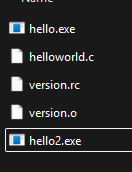
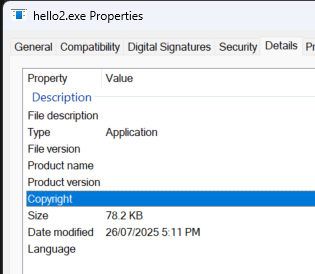
Well, I don’t know how it works, or why it does it; but with the help of some Copilot prompts I made a couple of binaries and did some testing. The first one, hello.exe, just prints hello world and has no embedded metadata. Just a simple C script compiled with GCC. The second, hello2.exe, has a .rc file which embeds the metadata I gave it. Simple enough.

So here’s hello2, which should have embedded information, but for reasons I don’t yet understand the API to pulls the information out to present it in the Details pane.

If I parse the file with pestudio, it’s definitely there (although sidebar, pestudio didn’t work properly on that self-extracting cab from earlier). Interestingly Amcache mirrored what was in the file properties, so maybe uses the same APIs?

Next I got Copilot to write me two other C programs – the first uses the Windows API to print the version information and the second manually extracts the data. Grain of salt here on how it’s working because I took a C class 20 years ago and also dont exactly know what Windows is doing (it’s probably a combo of these), but Copilot seems to have done what I told it to with a bit of tweaking.

So what?

Basically dont assume the properties the Windows APIs return are complete, and be wary of what might get put into a forensic artifact that pulls data out of a PE header – ie Amcache. It may not always be complete, or correct (but that’s a story for another time).

Cached screenshots on Windows 11

A while ago I wrote about how Windows would track screenshots in shell items and cache the content into a specific directory. While this blog post won’t be anything groundbreaking, I thought I’d share some fun findings about the new “Snipping Tool” on Windows 11.

“Snipping Tool” was briefly deprecated and replaced with “Snip and Sketch” on Windows 10, but then come Windows 11 we’re back to “Snipping Tool” again. If you press Windows+Shift+S or open “Snipping Tool” directly it will allow you to take a screenshot of a section of the screen.

The default settings show that any screenshot you take this way will be saved into the users “Pictures\Screenshots” directory. The filenames indicate they’re a screenshot but unfortunately there’s no embedded metadata inside.

Ok so that’s not really interesting, why would I want to talk about this?

Well, if you decide to turn this off, because you don’t want Windows to track your screenshots, then it will stop saving them into your Pictures directory and instead save them into the Snips directory shown below:

%LOCALAPPDATA%\Packages\Microsoft.ScreenSketch_8wekyb3d8bbwe\TempState\Snips

I’m not sure how long these last for but definitely last a reboot. I’ll try remember to check back in a few days and see whether they lasted.

Something else to note – it’s one or the other – it either saves them in your Screenshots folder or the Snips folder but not both.

Sunday Funday – Searching for searching

This week’s Sunday Funday challenge involves reviewing Microsoft 365 UALs so I figured what better excuse to get access to a dev tenancy. Originally I looked at how to request one of these from Microsoft, and then that fell into the “just hard enough basket” so I asked a friend who generously donated access to his 😀 Thanks Zach!

This week’s challenge asks the following question:

The first step was to get a couple accounts setup and (after making sure I assigned licenses, which I definitely didnt forget for the first little bit) generate some data. This was fairly simple; login to an account and do some really specific searches and then wait until the results filtered into the UAL.

First things first, make sure the UAL is enabled. I only did this after I did the data generation. So I guess we’re doing all of this data generation again!

1. A user searches their own mailbox

Hypothesis: There should be a search query recorded but it won’t tell me what it is

Data generation: For this test I sent an email containing the term “TESTKITCHENSEARCHEMAIL”. The mailbox only had one email anyways but may as well make the term unique. This returned my item, and I didnt access it. I ran the search around 7:05AM AEDT.

Result: There was nothing in the logs to indicate a search.

Other point of interest: I had to redo all this testing because the UAL wasn’t enabled, and proved to be annoying to turn on. When I went into the user account to do the search it had all the previous searches so they are stored somewhere in Outlook.com.

2. A user searches their own OneDrive

Hypothesis: There should be a search query recorded but it won’t tell me what it is

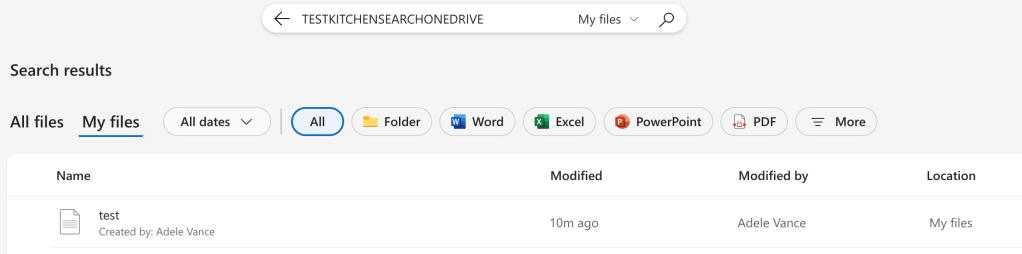
Data generation: For this I uploaded a couple of files and then ran a search in the address bar for the term that I put in “test.txt”. I ran the search around 7:07AM AEDT. I accessed OneDrive.com (which redirects to SharePoint) for this rather than going through the Outlook portal.

Results: Nothing in the logs to indicate a search

3. An administrator searches their own mailbox

Hypothesis: I expect this to say a search was run, doesn’t say what it was.

Data generation: As per the previous, but I ran the search logged in as my GA account around 7:09AM AEDT.

Results: Nothing returned

4. An administrator searches their own OneDrive

Hypothesis: I expect this to say a search was run, doesn’t say what it was.

Data generation: As per the previous, but I ran the search logged in as my GA account around 7:15AM. Weirdly I ran the search for the exact string and the file wasn’t found. I reran a search for “TESTKITCHEN” and it couldnt find it either. Strange!

There was this interesting link though since it couldn’t find it but clicking on that didnt find anything. It seems that it searched across Sharepoint and the hits in this tenancy would only be in OneDrive.

Results: Nothing returned

5. An administrator searches someone else’s mailbox

Hypothesis: I expect the content search will get logged, but not the search through delegated access.

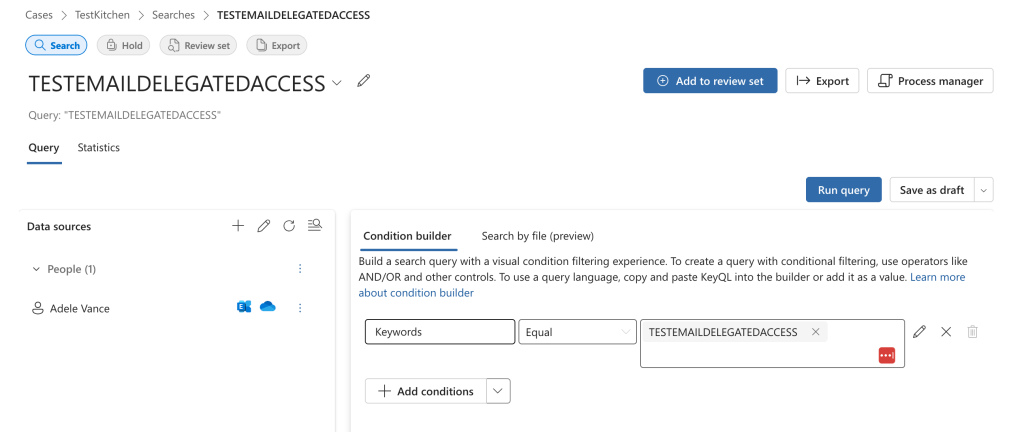
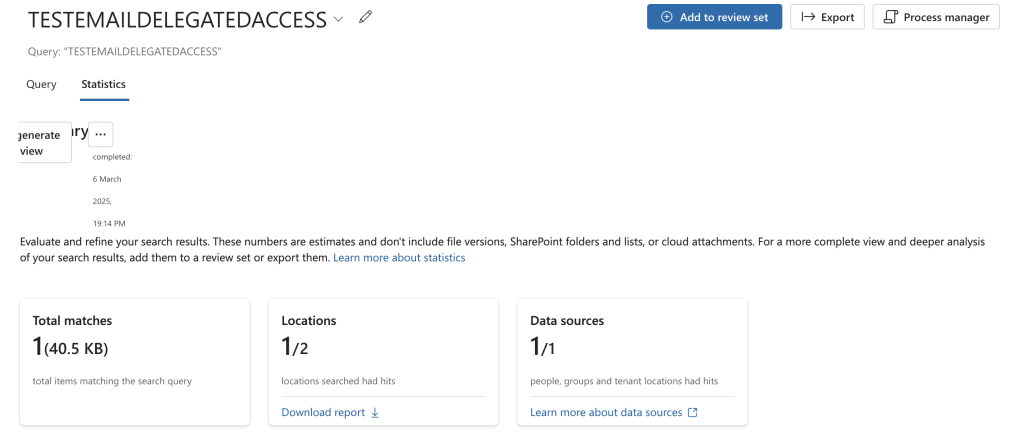
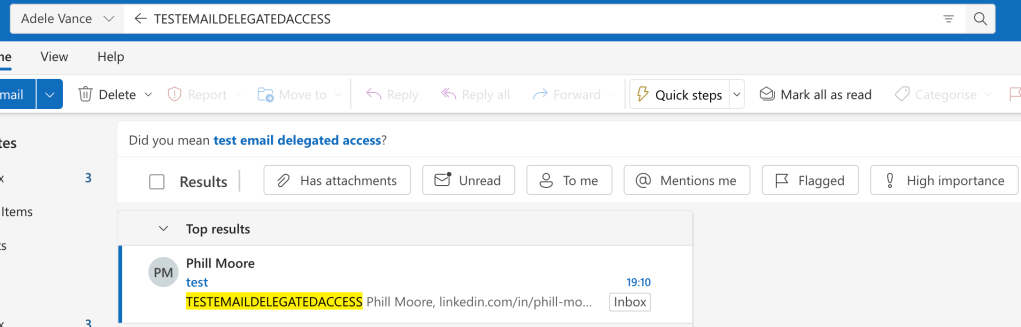
Data generation: I ran a content search through the eDiscovery portal in Purview (around 7:22AM, the screenshot was from the first time I did this the day before so the search name is now different), and then also added delegated access to the users account we can look in Outlook Web Access. I also made sure to send an email with specific wording to search for “TESTEMAILDELEGATEDACCESS”.

This returned one result as expected.

Adding mailbox delegation is done through: https://admin.cloud.microsoft/exchange. I added my administrator account to my user account to have full access.

I then added the mailbox to OWA as a shared folder.

I ran the search twice because it didnt find it the first time (All Folders); when i clicked into the Inbox then ran the search it listed it as the search location. So there could be a couple of searches around 7:23AM.

Results: The eDiscovery actions were quite well logged with activities like “Viewed eDiscovery case”, “Viewed Purview search”, “Retrieved all actions for search”, “Started content search” and more.

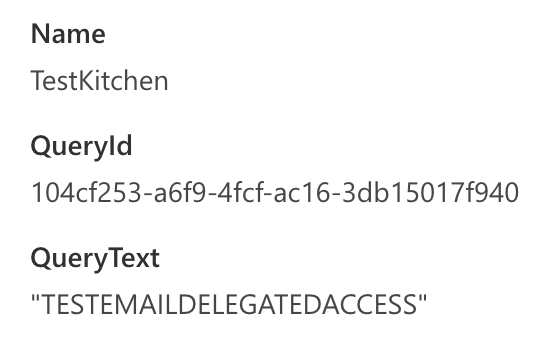
“Started content search” shows us the search text but we’d have to do a bit more work to figure out what resources they searched in.

Searching in OWA didnt get logged at all. I accessed some email in the other mailbox and that was logged; the evidence showed that the MailboxOwnerUPN was my victim mailbox.

6. An administrator searches someone else’s OneDrive

Hypothesis: I expect the delegated access search to get logged.

Data generation: I didnt bother running a content search through the eDiscovery portal in Purview again because it should be logged the same way as the email search. , and then also added delegated access through the Admin portal.

I was able to get access by clicking this link in the Admin portal:

The link generated gave me direct access to the users OneDrive

And I ran my search from the Search box

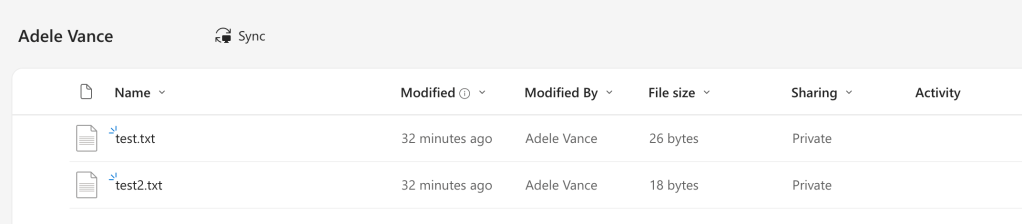
Which for some reason didnt return a result despite definitely being in the contents of “test2.txt”. Weird.

Results: Nothing returned again! I could see the operations that I had viewed the other users OneDrive (although it showed up as a SharePoint link) as either “ListViewed” or “Viewed Page”. The application display name clearly stated “OneDrive Web App (modern)” though.


Addendum:

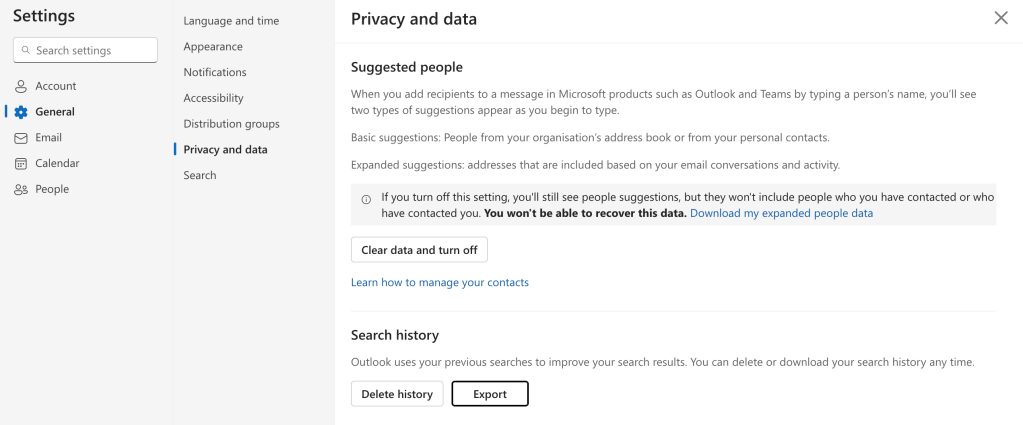
Something else that was interesting; if you go into the users settings (per account – I cant see a way to do this elsewhere or against a delegated mailbox), you can export the user searches

This gives you a file that had my searches:


Addendum2:

For some reason logging that a search occurred is an event you have to specifically enable. You can see how to here.

Why is it not just enabled…


Overall this test was very interesting; mostly because nothing showed up. I very much expected to get a “Performed search query” activity but that didn’t see to happen. I have seen searches in casework but mostly they dont include the text (or they just have a star).

The only thing that really was observed in the logs with regards to searching was the eDiscovery case which makes sense to have been logged.

I want to play more with Entra, and I still dont understand why we can’t use KQL to query the UAL directly. You can kind of use the CloudEvents table, but in practice this isn’t a complete record.

SRUMday Funday!

This week’s Sunday Funday challenge by David Cowen is on SRUM forensics. The challenge states:

The Challenge:
With so many of us relying on SRUM for so many different uses its time to do some validation on the counters so many people cite. For this challenge you will test and validate the following SRUM collected metrics and document if they accurately capture the data or if there is a skew present. 

Use cases to test and validate on Windows 11 or Windows 10 but you must document which:
1. Copying data between two drives using copy and paste (look for disk read and write activity )
2. Uploading data to an online service of your choice (look for process network traffic)
3. Wiping files (look for disk read and write activity)

Daily Blog #716: Sunday Funday 1/12/25

So let’s get started!

For this test I will be using Windows 11 24H2 and the times in my data generation are in AEDT (UTC+11). The times in the output are in UTC.

Data generation

Copying between two drives using copy and paste

For this test I created a virtual disk and a large file full of garbage. The disks were 2GB each and the file was 750MB (786,432,000 bytes on disk).

At 21:11 I copied the file and pasted it into the vhdx that was mounted.

Uploading data to an online server

At 21:15 I uploaded the same 750MB file with Google Chrome up to Google Drive. To do this I made sure to not use Explorer and went from within Chrome using the New –> File Upload section within drive.google.com. I accidently killed that upload around 21:25 because I wiped the file…so I’m not going to expect this number to be close to accurate but it got most of the way there.

At 21:17 I also copied the same file into my OneDrive by copying the file using the copy command within a PowerShell window. The file finished uploading to OneDrive around 21:30.

Wiping files

Lastly I wiped my transfer file around 21:25, since I have a few copies of it!

I also installed Eraser and wiped the file in the virtual disk at 21:32. I chose to right click directly on the file and choose Erase (not sure if that will change any outcomes).

Analysis

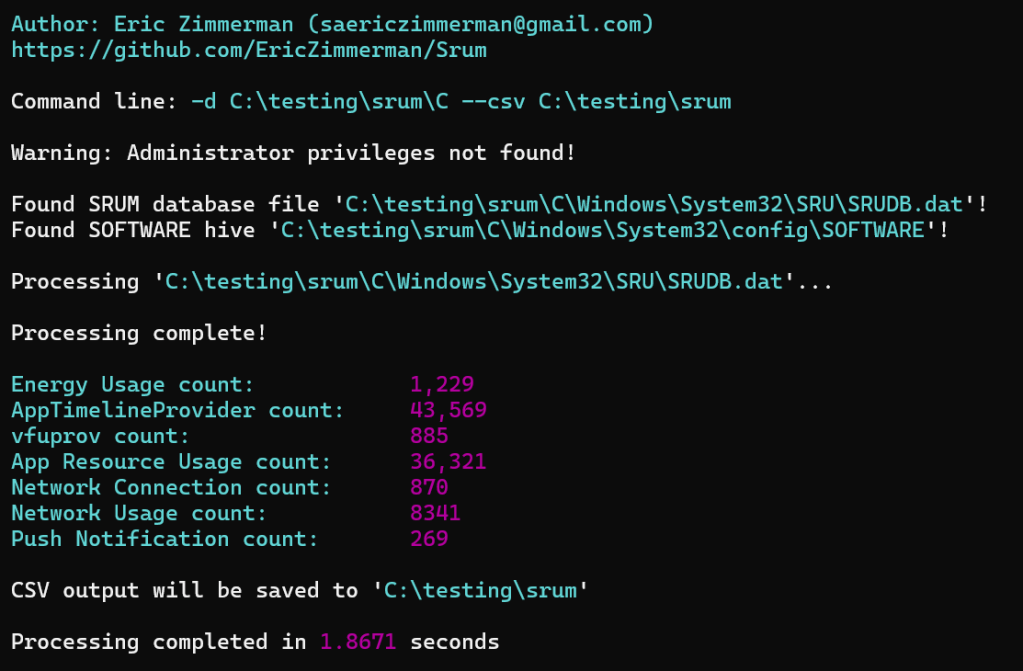
For analysis I chose to collect the data with KAPE, and I wanted to manually process it with a new fork of SRUMDUMP. This version is the same as current but it uses Dissect’s ESE module instead of libese.

After reparing with esentutl I found both current versions of Srumdump (libese and dissect) didn’t like the database, but srumecmd worked just fine! I haven’t looked at why they didn’t like it yet (but interestingly the new .net v9 srumecmd didn’t like it either).

For the analysis I decided to upload the data to Azure Data Explorer. Firstly it’s free, secondly it’s fantastic for quick data analysis.

I uploaded the output of srumecmd into separate tables; only AppResourceUseInfo, AppTimelineProvider, NetworkConnections and NetworkUsages.

Data copy

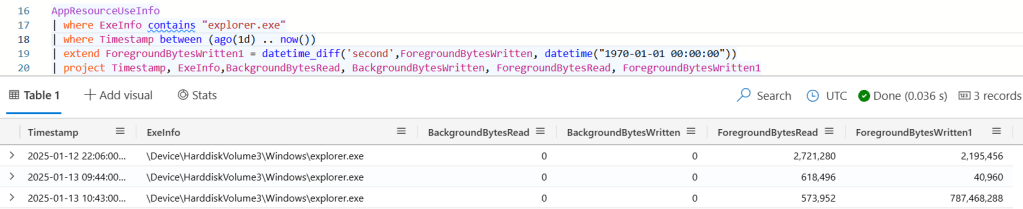
For data copy I grabbed the Explorer.exe process and the AppResourceUseInfo table (I didnt realise the ingest thought one of the fields was a timestamp instead of a long, so had to convert it). Here we can see that there was around 750MB (almost exactly the right number of bytes) written by the Explorer process, which tracks with the activity. Interestingly it doesn’t track the bytes read?

Data transfer

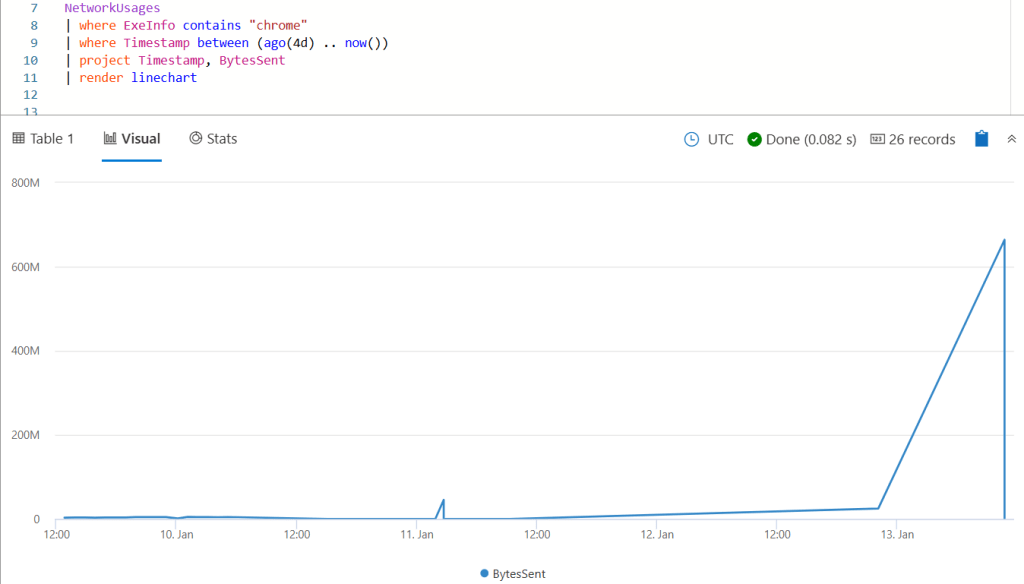
ADX is really great for this type of analysis because of the simplicity of the graphing features. Unfortunately I dont use this computer enough to graph with more granularity but you can see the spike pretty easily when filtering for BytesSent with Chrome.exe. The activity itself was recorded with a timestamp of 2025-01-13T10:43:00Z.

OneDrive shows similar activity with two events recorded at 2025-01-13T10:43:00Z, one being 144 bytes and the other being 883419280 bytes in the BytesSent column. This bytes sent is larger than the file but that is expected with whatever overhead OneDrive adds.

I’m still learning how to use ADX to it’s full potential, but you can do some cool stuff where you could summarise the transfer in discrete amounts and see whether there are spikes in network traffic.

Disk wiping

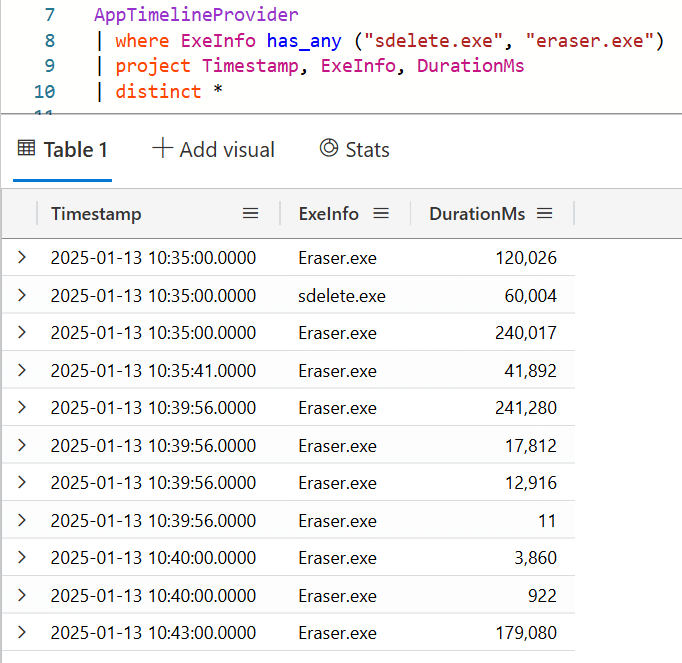
AppTimelineProvider shows both sdelete and eraser being run. I guess Eraser is still running in the background so that won’t really help us show that it was used to wipe something.

In the underlying data Sdelete is referenced twice; I think I might have ran it twice (but only once to wipe the file)

Next I checked the AppResourceUsageInfo table for the same and interestingly sdelete did not show up. Eraser showed up, but the bytes read was 0 and written was definitely not 750MB. That’s a bit confusing.

(The timestamps in AppTimelineProvider are breaking my mind a bit because I dont know why there’s a few different ones, need to go back to my notes. The other tables are recorded per hour.)

Summary

Ok so what did we learn

  1. For some reason srumdump didnt like my database, but srumecmd worked fine.
  2. Transferring a file across volumes using Explorer gets tracked as ForegroundBytesWritten, but not bytes read.
  3. Uploading a file with Chrome or OneDrive gets recorded in NetworkUsages with a spike in BytesSent. Granted here I wasn’t really using my computer for much else so it really did stand out.
  4. Erasing a file with Sdelete gets tracked in AppTimelineProvider but not in the other tables. This table does not give sizes.
  5. Eraser was in AppTimelineProvider and AppResourceUsageInfo but it didn’t show much in relation to the data wiping which was weird. It would be hard to show from this alone that something was wiped.

So some stuff is consistent, some is not. Sounds consistent with my experience…

Windows11 Wordwheelquery Woes

Recently one of my fellow SANS instructors, Mattia Epifani, noted that in Windows 11 23H2 the WordWheelQuery value is no longer populated. Time to do some testing!

Forensafe has a nice article that describes the artefact.

When I do a simple search in Explorer, it should populate a dropdown box in the search box; at least it has on previous versions of Windows. This in turn updates the WordWheelQuery key in the users NTUSER.DAT hive.

However, in (from?) this version of Windows 11, the searches are basically conducted as you type rather than on pressing enter. So it seems that instead it’s querying a database (likely the Windows search index) so that it can return results immediately. As the dropdown isn’t available any more, the WordWheelQuery key isn’t required to be populated.

No wordwheelquery key!

Overall this is a shame because we use this key during investigations all the time. It might still be in Windows Server, but I haven’t downloaded a copy to test it out on.

I did a search for a string as a test, and had a look at the Search index folder; Nothing in there changed, which is a shame, but likely the database is getting queried.

As a side note – I also looked at ProcMon and my string came up in TypedPaths. This is likely because I accessed something from my search window

As you can see below, the path that you performed the search against, and the search term is recorded, however this will depend on your interaction with a file inside the search dialog.

search-ms:displayname=Search%20Results%20in%20SystemIndex&crumb=System.Generic.String%3Aabcdefgfedcba&crumb=location:C%3A%5CProgramData%5CMicrosoft%5CSearch%5CData%5CApplications%5CWindows%5CGatherLogs%5CSystemIndex

Unfortunately as TypedPaths only records one timestamp we may not be able to determine when this took place. This would potentially be tracked in shell items however that’s outside the scope of this post!

Next to look into is the Start Menu though, because that definitely has some search information! A brief check says I need to start looking in the appdata\local\packages folder first. Next time!

How can I be of WebAssist(ance)?

There’s a new (newish?) database in Microsoft Edge that is worth exploring a bit further. This blogpost is partially an intro, partially a placeholder, because I saw some conversation on a listserv about the database but almost nothing else online about it. There’s limited research, so let me know what you find and I can update the post!

Read More »

CPY JMP

I’m teaching FOR500 Windows Forensic Analysis in Singapore this week and something that was recently added to the class relates to a new(ish) discovery into the operation of Jumplists on Windows 10.

During an update to the class it was discovered that when a folder is copied, the AutomaticDestination Jumplist file associated with Windows Explorer will track the folder copy operation as an interaction. How cool! Unfortunately this only relates to folder copies and not file copies but I’ll take it.

Read More »

Timestamps in INDX Entries

Welcome to 2023!

Turns out I didn’t post on here as much as I should have last year. Logging in this morning I can see I posted twice, whoops. Let’s change that with some validation research into INDX records, particularly in relation to the timestamps that are stored in INDX entries.

I’ve been putting together my talk for the upcoming Magnet Virtual Summit, and my talk is about carving out forensic artefacts from an encrypted VHDX file that I had during an ransomware investigation last year. During my investigation I had to use a variety of tools to piece together a timeline of activity from a blob of partially encrypted data, which was an interesting process.

One of the artefacts that I used was INDX records, which has lead me to play with a number of different tools and processes. The point of this post relates to the timestamps that you can find when parsing $I30 entries.

Read More »